How do I configure Chinese and English suggestions?
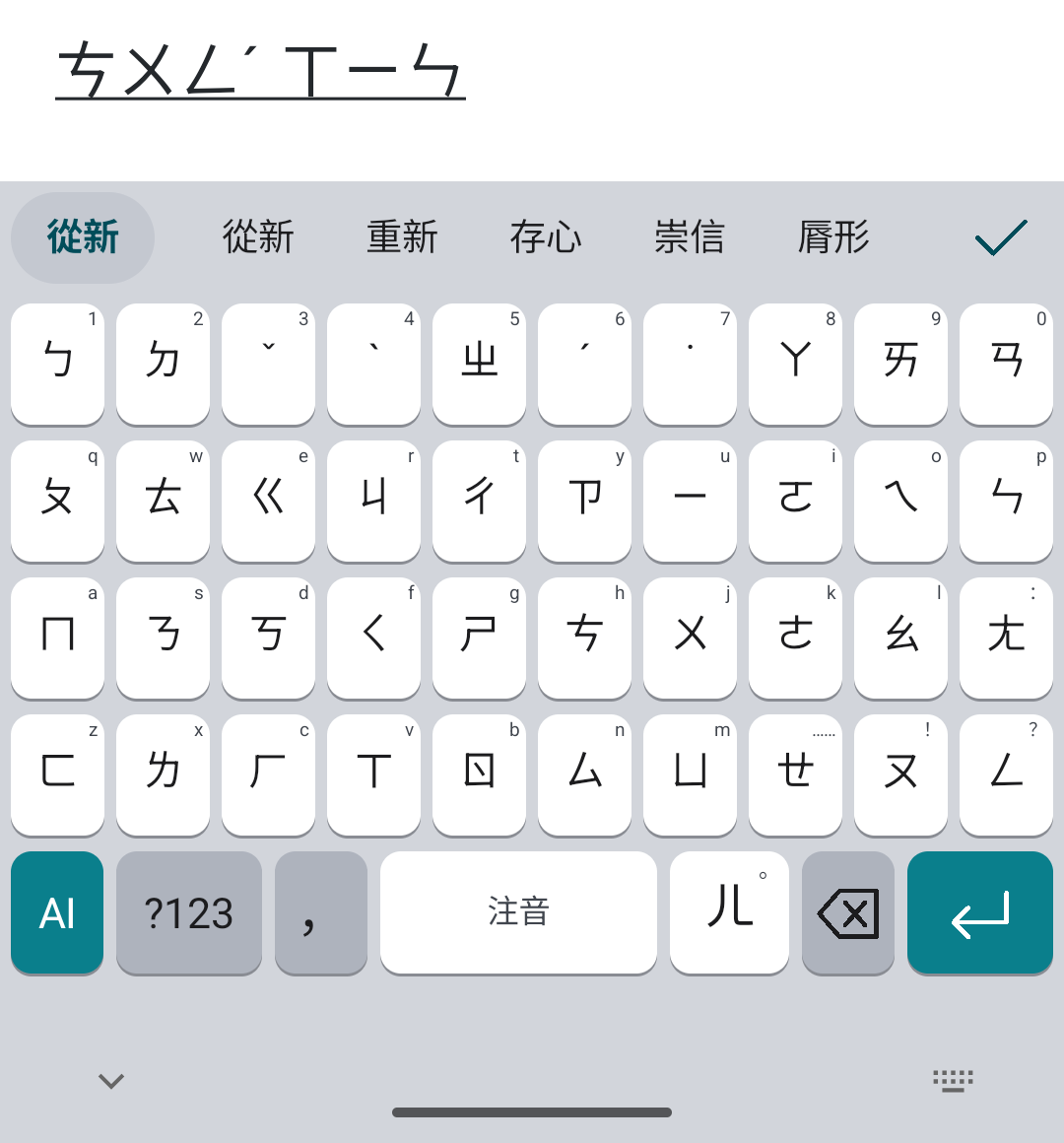
Zhuyin candidates use the traditional lexicon and Bigram scores from up to 16 consecutive Han characters and eight words before the cursor, with personal vocabulary taking priority. Toggle context-based ranking and fuzzy sounds under “常用設定 → 鍵盤與選字” (Common settings → Keyboard and selection).
0c selection separately reranks homophones on the phone from the text before the cursor, with Off, Conservative, Balanced (default) and Aggressive. The text it reads stays in memory and is cleared when you switch fields; the only thing saved is a log of up to 50 recent changes, without the surrounding text. If an app does not provide the text before the cursor, TingKey uses what you typed in the same field (up to 64 characters), kept only in memory for on-device candidate choice. Password fields never use it; fields that forbid personalized learning get no new learning or review, but may still use that text locally for ranking.
English offers Original English suggestions or English suggestions off, separately from Chinese. “傳統選字模型與授權” (Traditional selection models and licenses) is now under “關於與聲明” (About and notices), with full Bigram and dictionary licenses.
How do I switch between Zhuyin and English?
Tap A or ㄅ on the toolbar, or swipe sideways on the keys. TingKey also registers “中文注音” (Zhuyin) and “英文” (English) as system input languages, so you can pick one from the system keyboard switcher at the bottom right. Android 14 and later enable both automatically; on Android 13 and earlier, tick “英文” yourself in the system keyboard settings.
Where do my recordings and text go?
Android recordings always go to the self-hosted TingKey service. Recordings, recognition results and text sent to the service (including lexicon review, AI instructions, rewriting and translation) are kept for about seven days, then deleted. On-device recognition and OpenRouter are no longer offered. Windows dictation also uses the self-hosted TingKey service.
Each device keeps its own personal lexicon; your phone and PC do not sync. On Android, “Auto-add new words” is on by default: completed short typed sentences, dictation results (including the raw recognition) and the corrections you make on candidates are sent, together with your current personal lexicon, to TingKey’s self-hosted AI only to find names and proper nouns. The results are stored in the personal lexicon on your phone, up to 100 entries. You can view, edit or delete them under “Lexicon”, or turn automatic learning off; password fields and fields that prohibit learning are never sent. Words you add yourself are never removed automatically; additions, removals and words that could not be added are listed under “Lexicon”, and also appear in the status bar when “Show status bar” is on. When you use an AI instruction, rewriting or translation, the related text is also sent to the TingKey service. Windows also sends approved character and dictation corrections to the lexicon AI for review; new words are likewise capped at 100 and manual words are never removed automatically. When you use the AI panel, the target text and instruction are also sent to the TingKey service. Up to the last 5 AI panel instructions are stored on this PC and TingKey does not sync them; choosing to delete data when uninstalling removes them too.
On Android, you must accept the free-service terms on first launch before using TingKey at all, typing included. The terms cover voice and text processing (cloud recognition, editing, translation and rewriting send the related recordings and text to the self-hosted TingKey service) and the lexicon auto-update and AI review described above. Withdraw consent under “關於與聲明 → 隱私與服務同意 → 撤回服務同意” (About and notices → Privacy and service consent → Withdraw service consent); withdrawing turns off TingKey typing, dictation and every AI feature. Data already sent cannot be recalled, and the existing lexicon is not deleted automatically; you can still view or clear it. On Windows, consent likewise covers voice and text processing and lexicon review; withdraw it under “right-click the Chinese/English indicator → 設定… → 隱私與服務同意” (Settings… → Privacy and service consent). If you do not agree or withdraw, Zhuyin typing and 0c still work; cloud dictation, the AI panel and rewriting/translation, and lexicon review are turned off and requests in progress are cancelled, and the existing lexicon is kept.
Since 2026-10-31, TingKey no longer builds personal summaries (profiles) and has dropped the “future personalized advertising” purpose; only the personal lexicon’s auto-update and AI review remain. Profile-related data collected on the server was deleted on 2026-10-31: the server never stored profiles as files, and the related request logs and model cache were cleared that day. Windows 0.1.35 removes the personal summary; after upgrading, the new background service deletes the summary on this PC the first time it starts. Android 0.9.119, the version currently offered, still shows the old consent text and the personal summary page, but profile building and the advertising purpose no longer apply. The next time it, or an older Windows version not yet upgraded, sends a profile request, the server returns an empty summary and the summary on the device is cleared; on Android you can also clear it yourself under “個人摘要與隱私” (Personal summary and privacy).
How do raw transcripts and undo differ?
The Android app has no raw transcript mode. “原稿” (Raw transcript) is available only when the service returns a raw transcript different from the edited result. You can view, copy, or apply it; applying requires safely locating the previous dictation. The status bar is off by default, so the button temporarily appears in the toolbar after dictation when eligible, then disappears when you resume manual input or move the cursor or select text. With “顯示狀態列” (Show status bar) enabled, it appears on the right of the status bar.
“還原” (Undo) restores one safely verified text change, including an applied raw transcript or AI-instruction result. You must remain in the same input field and session, with the text unchanged by other actions. The status bar is off by default, so the button temporarily appears in the toolbar when eligible, then disappears when you resume manual input or move the cursor or select text. With “顯示狀態列” (Show status bar) enabled, it appears on the right of the status bar. App text-access capabilities can affect availability; undo is unavailable when the text cannot be read back and verified. After using AI on Zhuyin composition, undo restores the converted Chinese text.
Which voice commands are supported?
Android: record a separate command starting with “聽鍵指令”, followed by 換行, 加句號, 切換英文, 切換注音, 切換符號, or 還原上一次修改. When target text is available to process, you can also say “聽見 AI” by itself to open the AI instruction box; describe any translation request in the AI instruction. Only these fixed commands are handled; other speech remains ordinary dictation.
Windows: record a separate command starting with “聽見 AI”, “聽鍵 AI” or “TingKey AI”, then say 換行 (new line), 加句號 (add a period), 切換英文 (English), 切換注音 (Zhuyin), 還原上一次修改 (undo) or 翻譯上一段成英文 (translate the last passage into English). Windows has no symbol keyboard, and saying “聽見 AI” alone does not open the panel; tap Ctrl+Alt+Q instead. Anything else is dictated as text.
Can I change the editing rules?
Not currently. TingKey automatic-editing rules are managed by the server; Android has offered no rule editor since 0.9.111, and Windows also uses server-managed rules. The Android app always uses automatic editing for dictation; Windows raw mode skips AI editing.
Can I use it in my everyday apps?
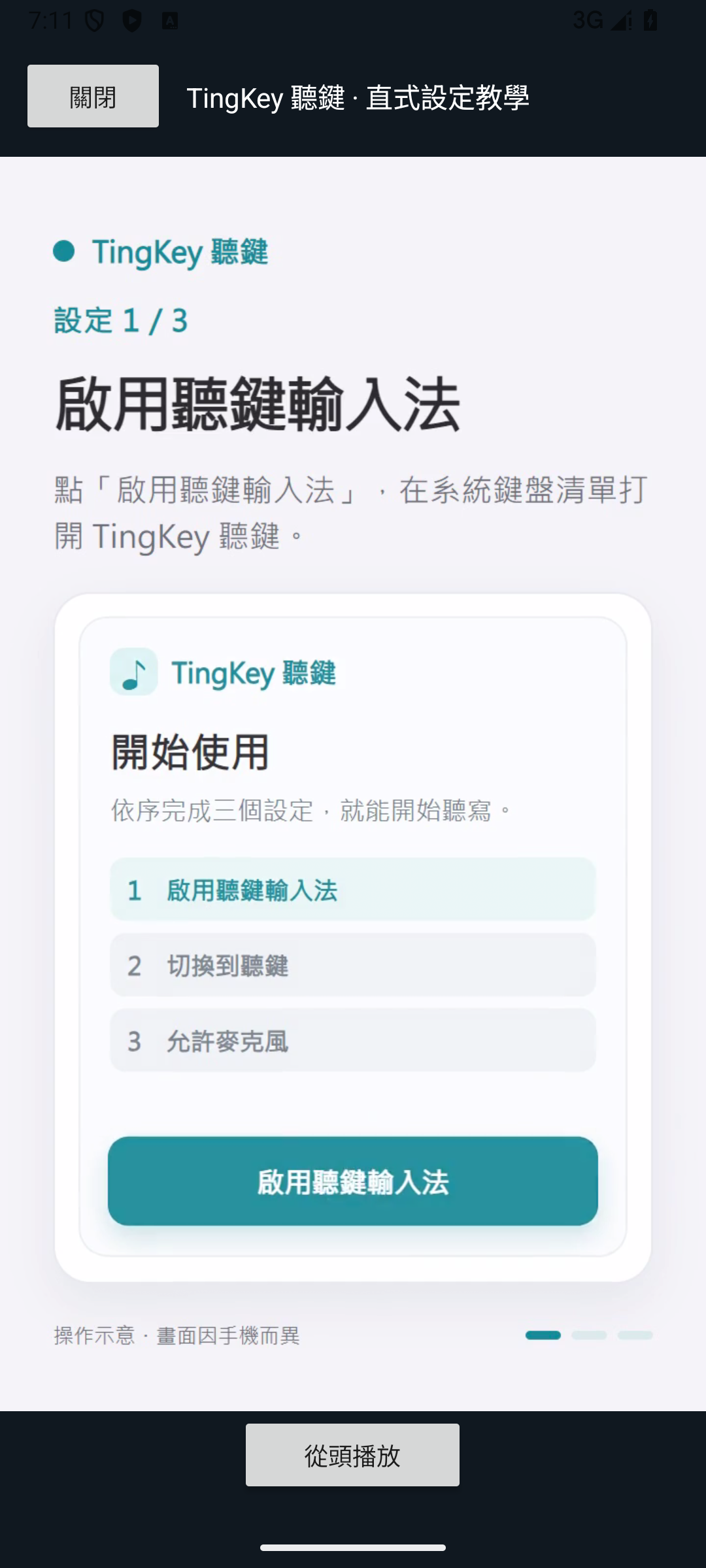
Set TingKey as your Android keyboard to use it in text fields that support the system keyboard. Context and post-dictation translation depend on the text access each app provides, so behavior can vary.
Password fields allow only English and symbols, without Zhuyin or dictation.
On Windows, once TingKey is added to the Chinese (Traditional, Taiwan) input methods, it works in regular programs and browsers such as Edge; dictation is not offered in password fields.
Is TingKey available for iPhone?
TingKey is available for Android and Windows 11 64-bit; there is no iPhone version yet. Check the changelog on this site for supported platforms and upcoming features.